Three.js의 그림자

Three.js는 동적으로 그림자를 렌더링 할 수 있다.
이는 그림자를 실시간으로 생성하여 표현해 줄 수 있다는 의미이다.
Three.js는 내부적으로 그림자를 위한 텍스쳐 이미지를 생성해
그림자를 표현할 Mesh에 Texture를 Mapping 하여 그림자를 표현한다.
그림자를 생성할 수 있는 광원은 정해져 있다. Light 학습 때 알아본 것처럼
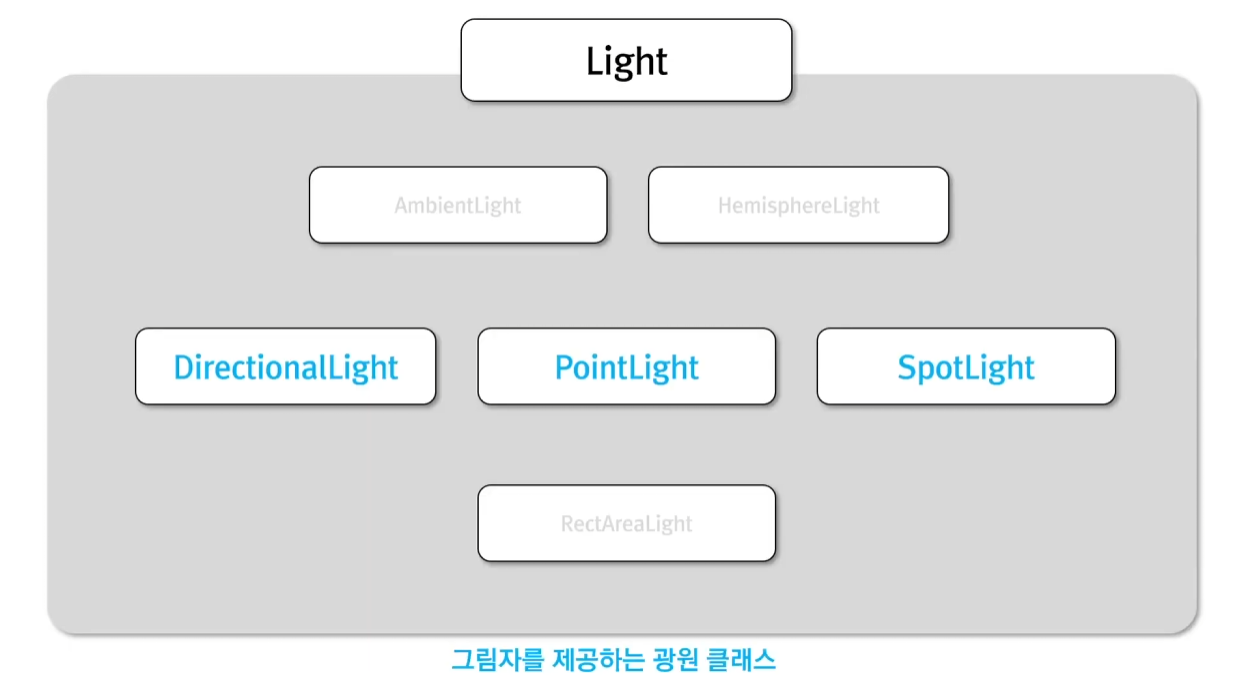
DirectionalLight, PointLight, SpotLight 3가지가 존재한다.
그러면, 그림자를 알아보기 위해 기존의 Light에서 학습했던 코드를 통해 프로젝트를 만들어보자
three.js/05_Light at main · yoohwanihn/three.js
[three.js][typescript]. Contribute to yoohwanihn/three.js development by creating an account on GitHub.
github.com
해당 git에서 clone을 한 뒤 npm install을 진행하거나 아래의 코드로 프로젝트를 만들자.
import { OrbitControls } from 'three/examples/jsm/Addons.js'
import './style.css'
import * as THREE from 'three'
import GUI from 'three/examples/jsm/libs/lil-gui.module.min.js'
import { RectAreaLightUniformsLib, RectAreaLightHelper } from 'three/examples/jsm/Addons.js'
import { RGBELoader } from 'three/examples/jsm/Addons.js'
import { texture } from 'three/examples/jsm/nodes/Nodes.js'

class App {
  private renderer: THREE.WebGLRenderer //Renderer Field 추가
  private domApp: Element
  private scene: THREE.Scene
  private camera?: THREE.PerspectiveCamera //?를 붙이면 PerspectiveCamera Type이나 Undefined Type을 가질 수 있음.(Optional Properties)

  /*
  //Directional Light
  private light?: THREE.DirectionalLight
  private helper?: THREE.DirectionalLightHelper
  */

  /*
  //Point Light
  private light?: THREE.PointLight
  private helper?: THREE.PointLightHelper
  */

  /*
  //Spot Light
  private light?: THREE.SpotLight
  private helper?: THREE.SpotLightHelper
  */

  constructor() {
    console.log("YooHwanIhn");
    this.renderer = new THREE.WebGLRenderer({ antialias: true }) // 안티-알리아스 : 높은 렌더링 결과를 얻기 위해 픽셀 사이에 계단 현상을 방지하는 효과 추가
    this.renderer.setPixelRatio(Math.min(2, window.devicePixelRatio)) // 고해상도에서 깨짐 방지를 위해 픽셀 비율 지정

    this.domApp = document.querySelector('#app')!
    this.domApp.appendChild(this.renderer.domElement) // renderer.domElement : canvas Type의 DOM 객체

    this.scene = new THREE.Scene()

    this.setupCamera()
    this.setupLight()
    this.setupModels()
    this.setupEvents()
  }

  private setupCamera() {
    const width = this.domApp.clientWidth
    const height = this.domApp.clientHeight

    this.camera = new THREE.PerspectiveCamera(75, width / height, 0.1, 100)
    this.camera.position.z = 5  // (0, 0, 5)

    new OrbitControls(this.camera, this.domApp as HTMLElement)
  }

  private setupLight() {
    // const light = new THREE.AmbientLight("#ffffff", 1)
    //const light = new THREE.HemisphereLight("#b0d8f5", "#bb7a1c",1)

    /*
    //Directional Light
    const light = new THREE.DirectionalLight(0xffffff, 1)
    light.position.set(0, 1, 0)
    light.target.position.set(0, 0, 0)
    this.scene.add(light.target)
    this.light = light

    const helper = new THREE.DirectionalLightHelper(light)
    this.scene.add(helper)
    this.helper = helper

    this.scene.add(light)
    */

    /*
    //Point Light
    const light = new THREE.PointLight(0xffffff, 20)
    light.position.set(0, 5, 0)
    light.distance = 5  // 광원의 영향을 받을 범위 (default 0 = 모든 범위)
    this.scene.add(light)
    this.light = light

    const helper = new THREE.PointLightHelper(light)
    this.scene.add(helper)
    this.helper = helper
    */

    /*
    //Spot Light
    const light = new THREE.SpotLight(0xffffff, 5)
    light.position.set(0, 5, 0)
    light.target.position.set(0, 0, 0)
    light.angle = THREE.MathUtils.degToRad(40)
    light.penumbra = 0  // 빛의 감쇠율
    this.scene.add(light)
    this.scene.add(light.target)

    const helper = new THREE.SpotLightHelper(light)
    this.scene.add(helper)

    this.light = light
    this.helper = helper

    const gui = new GUI()
    gui.add(light, 'angle', 0, Math.PI/2, 0.01).onChange(() => helper.update())
    gui.add(light, 'penumbra', 0, 1, 0.01).onChange(() => helper.update())
    */

    /*
    //RectAreaLight
    RectAreaLightUniformsLib.init() //RectAreaLight 광원은 먼저 초기화를 해줘야함.
    const light = new THREE.RectAreaLight(0xffffff, 10, 3, 0.5)
    light.position.set(0, 5, 0)
    light.rotation.x = THREE.MathUtils.degToRad(-90)
    this.scene.add(light)

    const helper = new RectAreaLightHelper(light)
    light.add(helper)
    */

    // HDRI
    new RGBELoader().load("./hayloft_4k.hdr", (texture) => {
      texture.mapping = THREE.EquirectangularRefractionMapping

      this.scene.environment = texture  //광원
      this.scene.background = texture   //배경

      this.renderer.toneMapping = THREE.AgXToneMapping  // 광원의 세기 지정
      this.renderer.toneMappingExposure = 0.2 //default 1
    })

  }

  private setupModels() {
    const axisHelper = new THREE.AxesHelper(10) // 좌표축
    this.scene.add(axisHelper)

    const geomGround = new THREE.PlaneGeometry(5, 5) // ground (5x5)
    const matGround = new THREE.MeshStandardMaterial({
      color: "#2c3e50",
      roughness: 0.5,
      metalness: 0.5,
      side: THREE.DoubleSide
    })
    const ground = new THREE.Mesh(geomGround, matGround)
    ground.rotation.x = -THREE.MathUtils.degToRad(90)
    ground.position.y = -.5
    this.scene.add(ground)

    const geomBigSphere = new THREE.SphereGeometry(1, 32, 16, 9, THREE.MathUtils.degToRad(360), 0, THREE.MathUtils.degToRad(90))
    const matBigSphere = new THREE.MeshStandardMaterial({
      color: "#ffffff",
      roughness: 0.1,
      metalness: 0.2
    });
    const bigSphere = new THREE.Mesh(geomBigSphere, matBigSphere)
    bigSphere.position.y = -.5
    this.scene.add(bigSphere)

    const geomSmallSphere = new THREE.SphereGeometry(0.2)
    const matSmallSphere = new THREE.MeshStandardMaterial({
      color: "#e74c3c",
      roughness: 0.2,
      metalness: 0.5
    })
    const smallSphere = new THREE.Mesh(geomSmallSphere, matSmallSphere)

    const smallSpherePivot = new THREE.Object3D();
    smallSpherePivot.add(smallSphere)
    bigSphere.add(smallSpherePivot);
    smallSphere.position.x = 2
    smallSpherePivot.rotation.y = THREE.MathUtils.degToRad(-45)
    smallSphere.position.y = 0.5 // bigSphere의 y position이 -.5기 때문에
    smallSpherePivot.name = "smallSpherePivot"  // update에서 접근하기 쉽게 명명함

    const cntItems = 8
    const geomTorus = new THREE.TorusGeometry(0.3, 0.1)
    const matTorus = new THREE.MeshStandardMaterial({
      color: "#9b59b6",
      roughness: 0.5,
      metalness: 0.9
    })
    for (let i = 0; i < cntItems; i++) {
      const torus = new THREE.Mesh(geomTorus, matTorus)
      const torusPivot = new THREE.Object3D() // Torus 역시 반 구를 기준으로 회전하면서 8개를 생성하기 때문에 피봇이 필요함
      bigSphere.add(torusPivot)

      torus.position.x = 2  // smallSphere의 x 포지션과 일치하게함
      torusPivot.position.y = 0.5 // bigSphere의 y 포지션이 -.5임
      torusPivot.rotation.y = THREE.MathUtils.degToRad(360) / cntItems * i
      torusPivot.add(torus)
    }
  }

  //실제 이벤트와 렌더링 처리를 다룰 메서드
  private setupEvents() {
    window.onresize = this.resize.bind(this); // html의 size가 변경될 때마다 호출되는 함수(addEventListener 느낌??)
    this.resize();

    this.renderer.setAnimationLoop(this.render.bind(this)) // 연속적으로 render 메서드 호출(모니터 Frame에 맞게)
  }

  // html창 resize시 호출할 함수
  private resize() {
    const width = this.domApp.clientWidth
    const height = this.domApp.clientHeight

    //앞선 setUpCamera에서 설정한 camera 정보를 다시 수정해줌.
    const camera = this.camera
    if (camera) {
      camera.aspect = width / height
      camera.updateProjectionMatrix() // 카메라의 값이 변경되었다면 수정하도록 함.
    }

    //renderer도 마찬가지로 사이즈 수정함
    this.renderer.setSize(width, height)
  }

  private update(time: number) {
    time *= 0.001 // ms -> s 단위로 변경

    const smallSpherePivot = this.scene.getObjectByName("smallSpherePivot")
    if (smallSpherePivot) {
      //smallSpherePivot.rotation.y = time;
      const euler = new THREE.Euler(0, time, 0)
      const quaternion = new THREE.Quaternion().setFromEuler(euler)
      smallSpherePivot.setRotationFromQuaternion(quaternion)

      const smallSphere = smallSpherePivot.children[0]  // 화면상 회전하는 빨간색 구체

      /*
      // Directional Light
      smallSphere.getWorldPosition(this.light!.target.position) // this.light!는 this.light가 절대 null이나 undefined가 아님을 의미
      this.helper!.update() // this.helper가 null이나 undefined가 아님
      */

      /*
      // Point Light
      smallSphere.getWorldPosition(this.light!.position) // smallSphere 위치를 광원의 위치로
      this.helper!.update()
      */

      /*
      // Spot Light
      smallSphere.getWorldPosition(this.light!.target.position)
      this.helper!.update()
      */
    }
  }

  private render(time: number) {
    // time : setAnimationLoop의 값에 의해서 결정되는데 단위는 ms
    this.update(time)

    this.renderer.render(this.scene, this.camera!)
  }
}

new App()
그러면 Transform에서 만든 Scene이 HDRI 광원으로 렌더링 되는 결과가 나올 것이다.

결과에서, 그림자를 좀 더 효과적으로 살펴보기 위해서 Scene을 구성하는 모델 중, 하얀색의 반구를

위와 같이 SphereGeometry에서 TorusKnotGeometry (토러스 매듭 or 연환면 연환)로 변경한다.
그리고 Ground에서 Geometry가 가려지는 것을 방지하기 위해 y축으로 +1만큼 이동시킨다.
Directional Light 그림자
현재 광원은 HDRI 광원에서 Directional Light 광원으로 코드를 변경시키자.
주석 처리 되어있는 Directional Light 광원 코드들을 주석을 풀어주고 HDRI 관련 코드를 주석 처리한다.
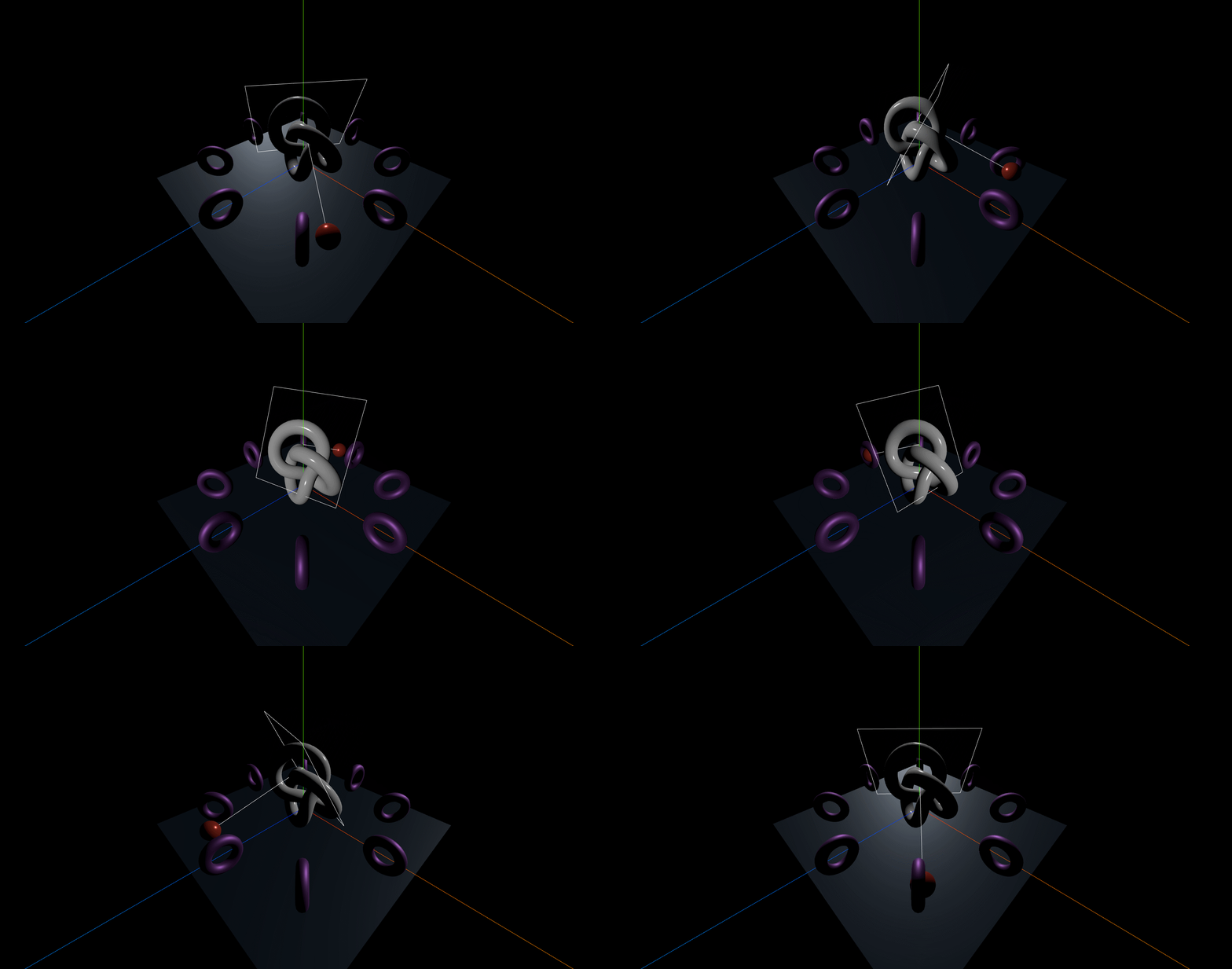
기존 SphereGeometry로 Directional Light를 학습할 때와 Geometry를 제외하고 동일한 결과가 나올 것이다.
그럼, 그림자를 활성화시키자.
Three.js에서 그림자를 활성화시키기 위해선 3가지 설정이 필요하다.

렌더링은 생성자에서 수행하고, 광원은 setupLight, 매시는 setupModels에서 수행하므로
각각의 위치에 해당 코드를 추가해 준다.


그림자를 표현하기 위해서 광원과 렌더러에 설정을 해주었다.
그러나 매시에 그림자 효과를 주는 것은 경우에 따라 설정을 변경할 필요가 있다.

ground의 경우 그림자의 영향은 받아야 하지만, 자기 자신의 그림자를 생성할 필요가 없다.
렌더링 상에서 ground의 그림자를 굳이 보여줄 필요가 없기 때문이다.
그러나 ground 위에서 회전하고 있는 bigSphere(사실은 TorusKnotGeometry)와
그 외 Geometry의 Mesh들은 그림자가 있는 것이 자연스럽다.

그렇기에 bigSphere(TorusKnotGeometry)는 자신의 표면에 그림자를 표현해야 하므로 receiveShadow를 true로 설정하고
자기 자신의 그림자도 생성할 필요가 있으므로 castShadow를 true로 설정해야 한다.
마찬가지로 torus와 smallSphere에도 reveiveShadow와 castShadow를 설정해 준다.

그리고 광원의 밝기를 증가시켜 결과를 확인해 보자.
광원의 밝기를 1에서 5로 증가시켰다.

결과는 예상대로 Torus와 TorusKnot에 그림자가 표현되었다.
그러나 그림자가 예상한 것과는 조금 다른 결과가 나왔다.
Torus를 보면 그림자가 완전히 표현되지 않고 그림자가 잘리거나 어색하게 나온다.
원인을 찾기 위해, 광원에 대한 그림자를 위한 카메라를 시각화 해보자.

setupLight 메서드에 광원, 광원 헬퍼(광원 시각화) 외에 카메라 헬퍼(카메라 시각화) 객체를 추가하여
해당 객체를 장면(Scene)에 추가해 준다.
그러면 다음과 같은 렌더링 결과가 나올 것이다.
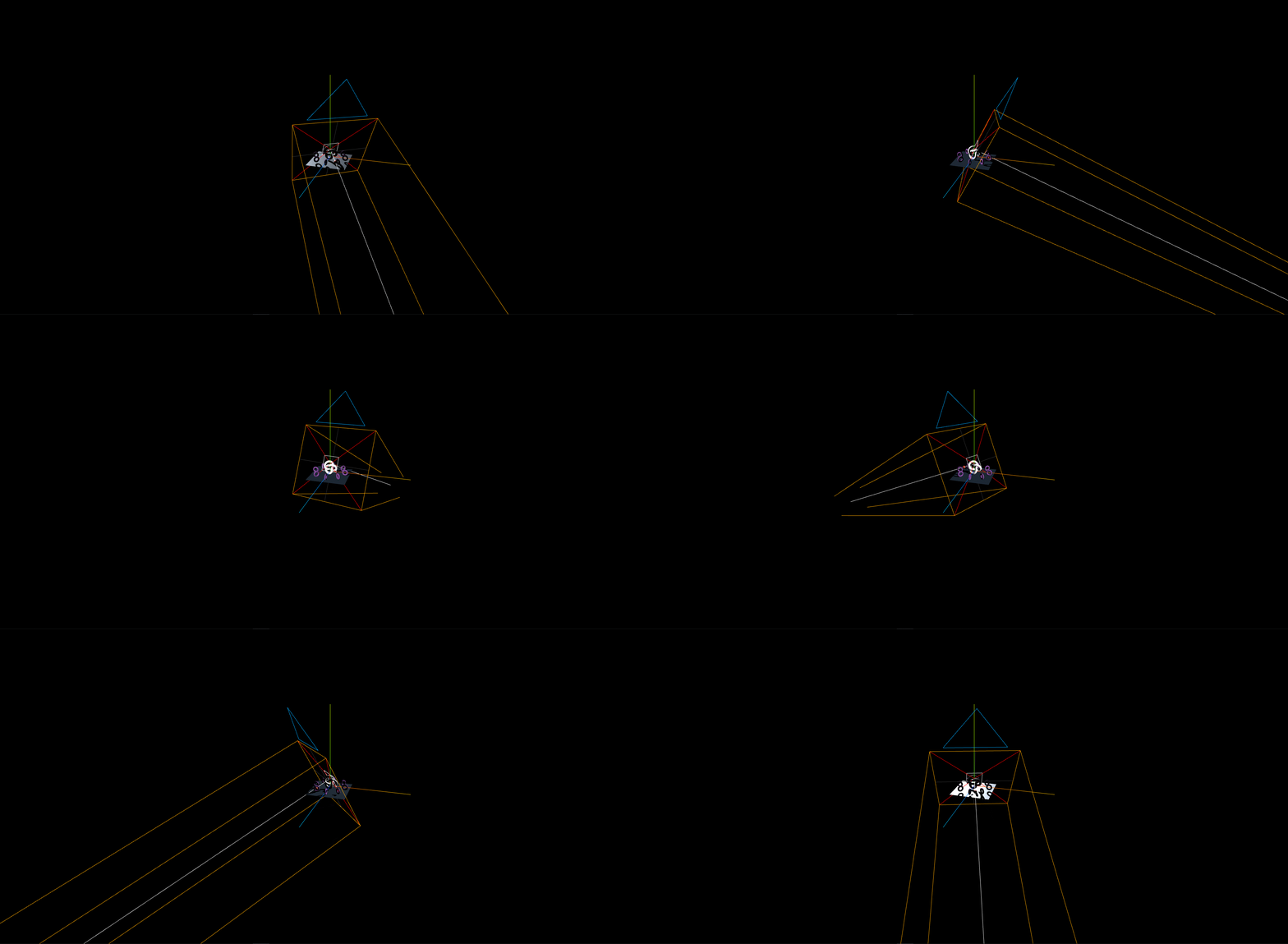
그림자를 보여주는 Camera Helper가 추가된 모습이다.

코드를 좀 더 살펴보자.
그림자를 지원하는 광원(Directional, Point, Spot)들은 모두 shadow라는 속성을 갖고 있다.
그리고 shadow 속성은 모두 camera 속성을 갖고 있다. 이 camera는 그림자에 의한 Texture 이미지를 생성한다.
Directional Light의 그림자를 위한 카메라는 Orthographic Camera이다.
이전 Camera의 글에서 살펴본 것처럼 위 이미지에서 노란색 육면체의 범위는 절두체이며,
해당 범위 내에 존재하는 그림자만 렌더링 된다.
즉, 그림자가 잘리거나 어색하게 렌더링 되는 이유는 육면체의 범위(절두체)에서 그림자가 벗어나기 때문이다.
그렇기 때문에 Camera의 육면체(절두체) 크기를 더 크게 해 주거나 위치를 조정할 필요가 있다.

첫 번째 방법으로 육면체의 위치를 조정 해주자.
육면체의 위치를 조정하기 위해서 광원의 위치를 (0, 1, 0)에서 (0, 3, 0)으로 수정해 주었다.
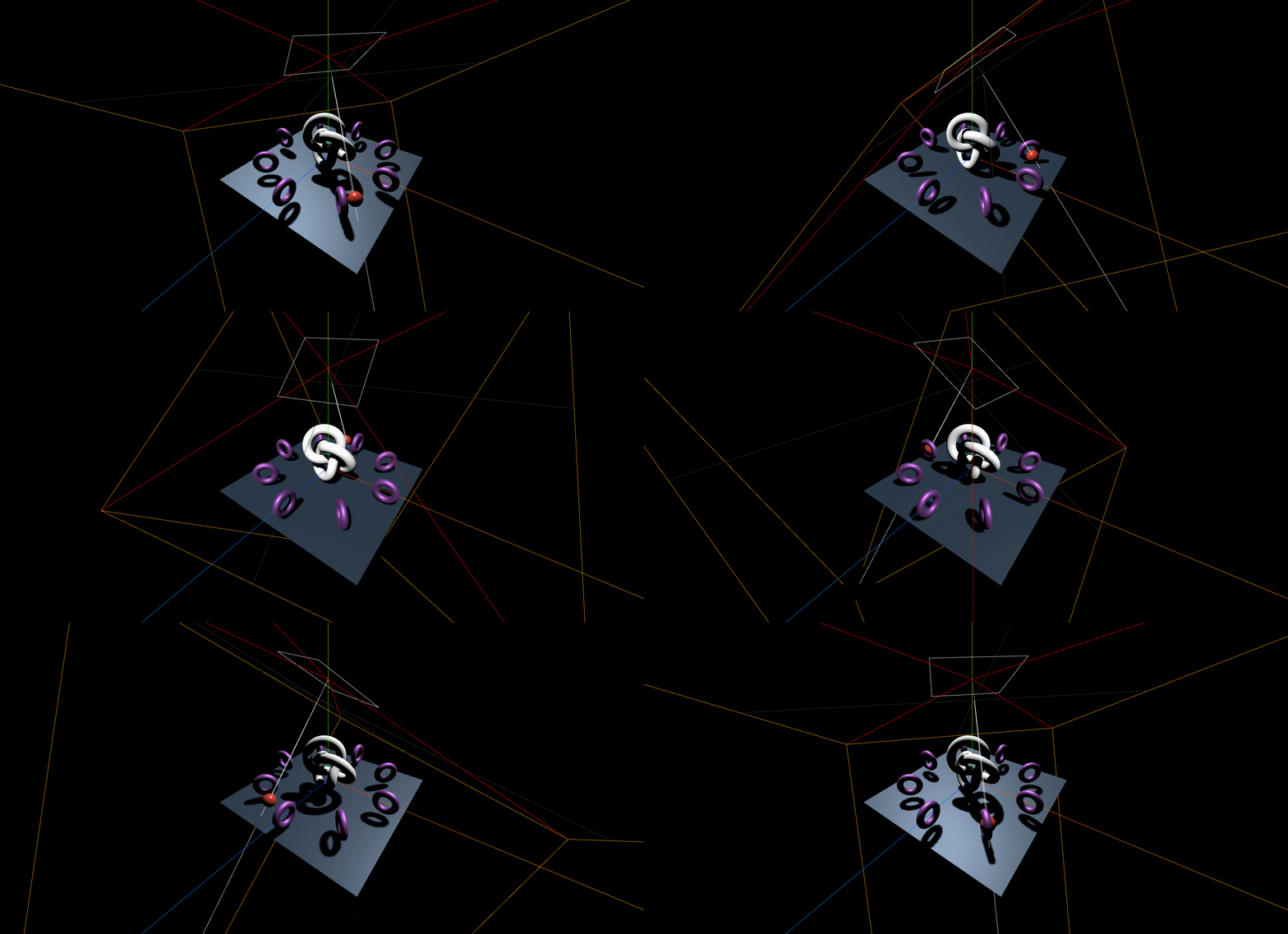
카메라 헬퍼의 육면체(절두체) 내부에 모든 Mesh가 포함되어 그림자가 제대로 나오고 있는 모습이다.
또 다른 방법으로는 육면체의 크기를 조절하는 방법이다.
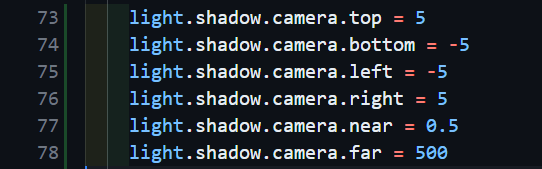
위와 같이 그림자를 제공하는 광원들의 shadow 속성의 camera 속성은
top, bottom, left, right, near, far 속성을 제공하며, 육면체의 size를 설정하는 속성들이다.
육면체는 Orthographic Camera이기 때문에 Camera에서 다뤘던
Orthographic Camera의 6가지 인자값과 동일한 속성값이다.
위의 값은 Default 값으로, 해당 값을 아래와 같이 변경시키고 실행시켜보자
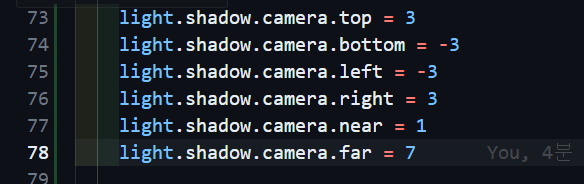
결과는 다음과 같다.
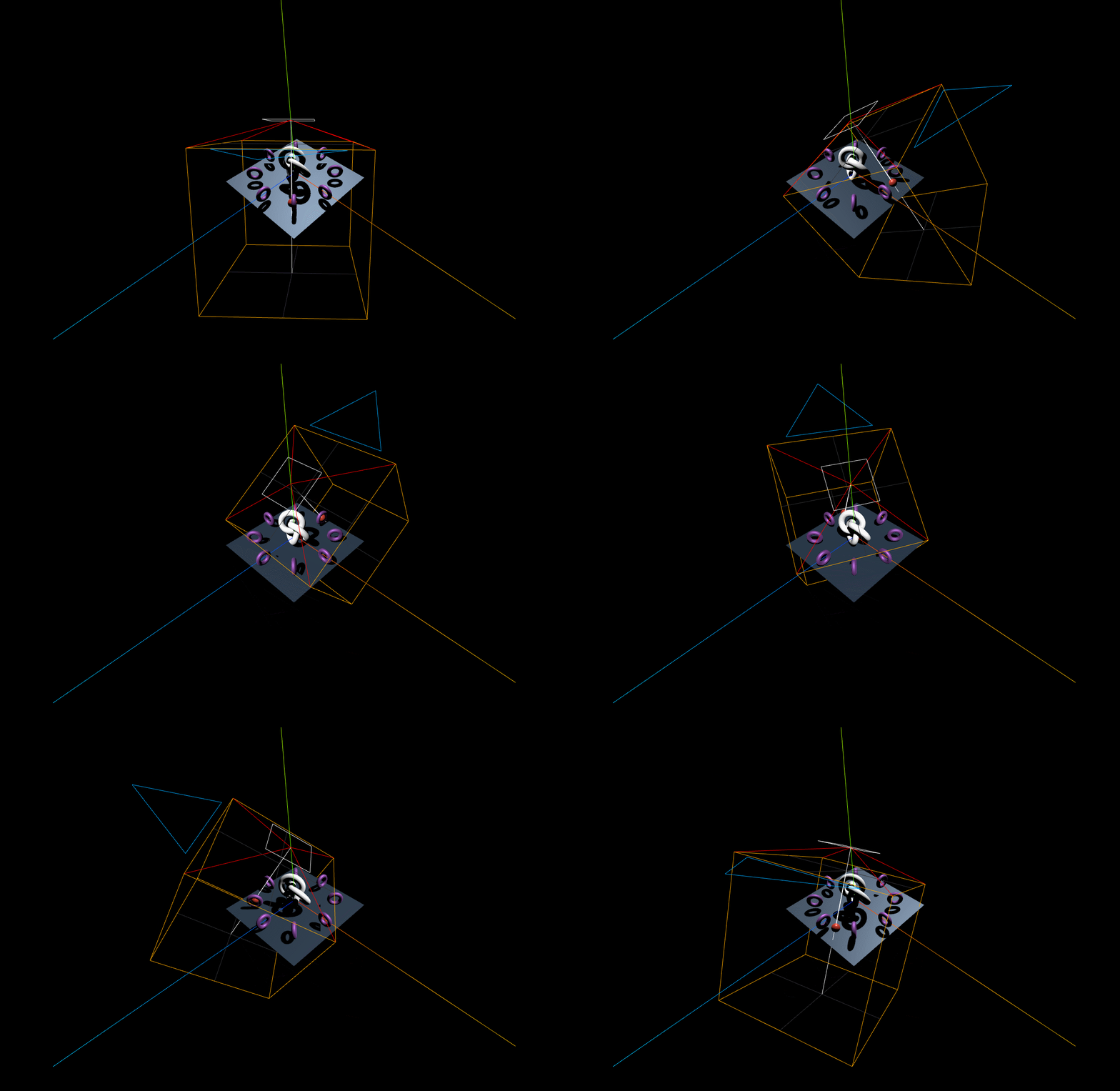
그림자가 장면(Scene)에 추가될 절두체의 사이즈가 변경되었다.
이를 통해 그림자를 렌더링하는 절두체의 위치와 사이즈를 변경시킬 수 있다는 사실을 알게 되었다.
위 사이즈로 학습을 진행하면 그림자가 일부분 잘리기 때문에 절두체 사이즈를 되돌리자.
다시 원래 Default 값으로 속성 값을 되돌리자.
속성 값을 되돌렸으면, 그림자의 품질을 수정 해보자.
앞서, 그림자는 Texture를 이용해서 표현된다고 하였다.
기본적으로 그림자를 위한 Texture의 크기는 가로와 세로 모두 512 픽셀이다. 이 크기를 더 크게 하면
그림자의 품질 역시 향상될 것이다.

그림자의 픽셀을 2048로 수정해준다.
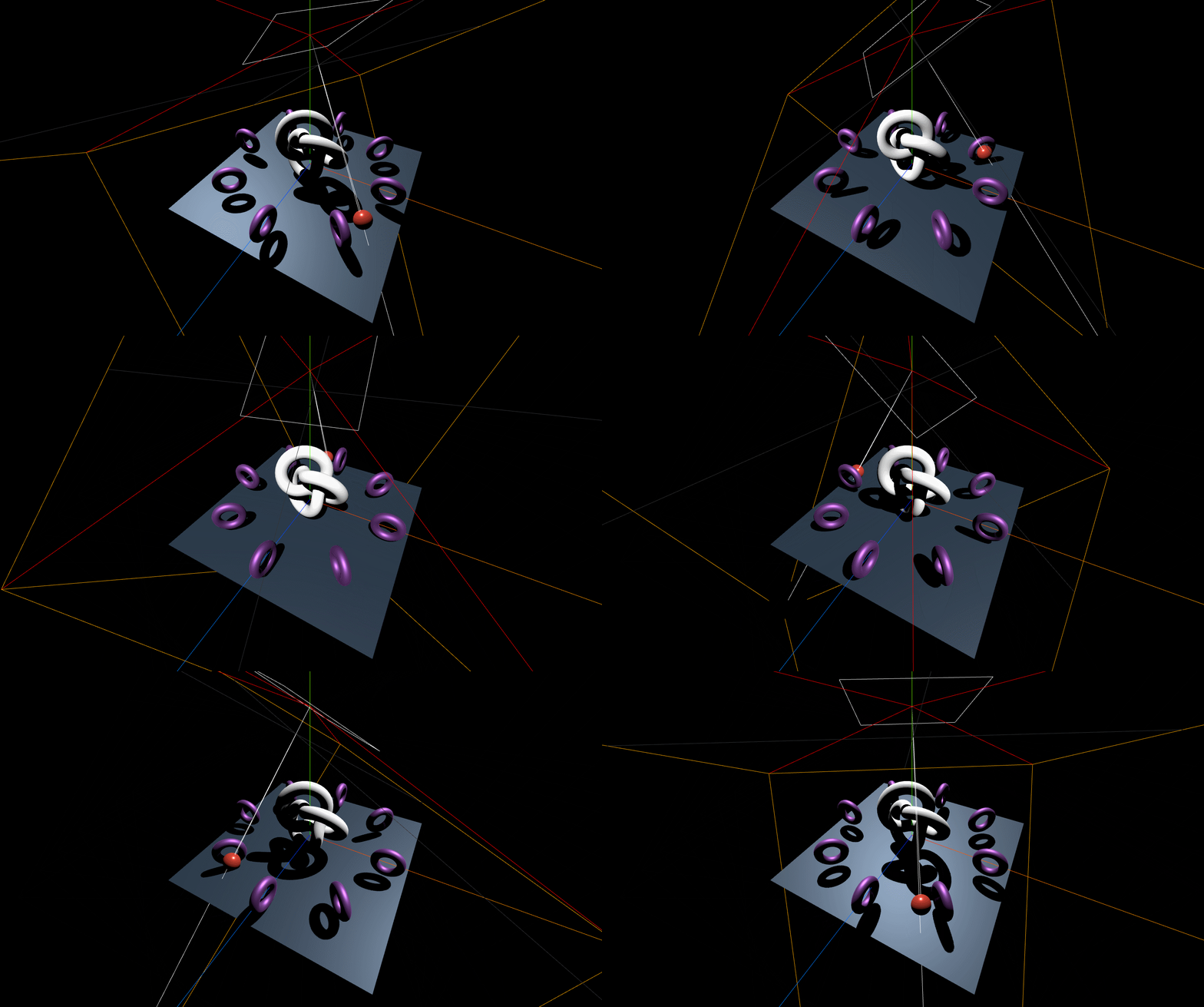
그림자가 더욱 선명하게 표현되는 것을 확인할 수 있다.
'three.js' 카테고리의 다른 글
| [three.js][typescript] - Shader (0) | 2025.04.01 |
|---|---|
| [three.js][typescript] - Camera(3) (0) | 2024.07.18 |
| [three.js][typescript] - Camera(2) (0) | 2024.07.17 |
| [three.js][typescript] - Camera(1) (1) | 2024.07.16 |
| [three.js][typescript] - Light(3) : HDRI (5) | 2024.07.16 |


