[three.js][typescript] - Light(2)
[three.js][typescript] - Light(1)Geometry, Material에 이어 Light(광원)에 대해 알아보자 광원이란 빛을 방출하는 물체나 현상을 말한다. Three.js에서는 Light를 상속받는 6개의 광원 클래스와 그 외 HDRI를 이
yoohwanihn.tistory.com
지난 글에 이어서 Three.js 가 제공하는 6개의 광원 이외에 HDRI 광원에 대해 알아보자.
HDRI
[three.js][typescript] - Material(4)
[three.js][typescript] - Material(3)[three.js][typescript] - Material(2)[three.js][typescript] - Material(1)Three.js 의 Object3D의 파생클래스는 위와 같다. Point는 Geometry를 구성하는 좌표 하나 하나를 렌더링하며 Line은 좌
yoohwanihn.tistory.com
HDRI는 Material에서 한번 사용해 봤던 광원이다.
HDRI란 High Dynamic Range Image의 약자로 이미지 처리와 3D에서 많이 사용되는 기술이다.
리얼리즘, 높은 명암비, 현실적인 환경과 조명등을 제공할 때 사용된다.
Three.js를 비롯해서 HDRI를 이용한 광원은 원하는 분위기를 쉽고 빠르게 생성할 수 있다.
그럼 HDRI 광원을 생성해보자. 그러기 위해서 HDRI 광원은 HDRI 데이터가 필요하다.
이를 제공하는 다양한 사이트가 존재하지만 나는 Poly Haven 사이트를 추천한다.
HDRIs • Poly Haven
Previously known as HDRI Haven. Hundreds of free HDRI environments, ready to use for any purpose. No login required.
polyhaven.com
해당 사이트에서 원하는 분위기의 광원을 선택하자
Hayloft HDRI • Poly Haven
Download this free HDRI from Poly Haven
polyhaven.com
나는 이 광원을 선택했다.
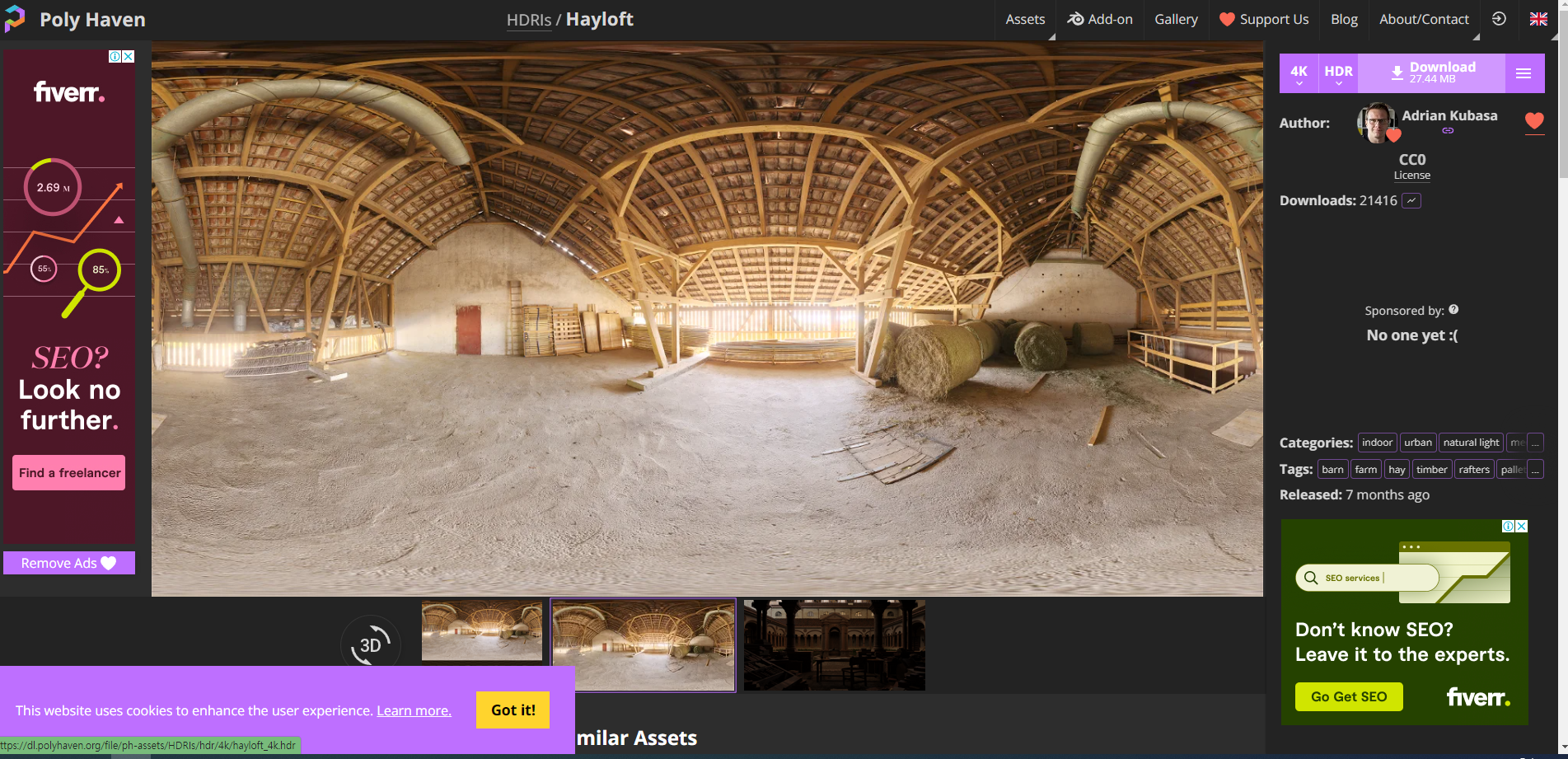
우측 상단의 해상도와 타입(HDR)을 선택하고 다운로드 버튼을 누르면 된다.

다운로드한 파일을 프로젝트의 public 폴더에 추가해 준다.
그리고 기존의 코드에서 RectAreaLight 광원을 사용했던 코드를 주석처리 해준다.
해당 코드는 아래와 같다.
import { OrbitControls } from 'three/examples/jsm/Addons.js'
import './style.css'
import * as THREE from 'three'
import GUI from 'three/examples/jsm/libs/lil-gui.module.min.js'
import { RectAreaLightUniformsLib, RectAreaLightHelper } from 'three/examples/jsm/Addons.js'

class App {
  private renderer: THREE.WebGLRenderer //Renderer Field 추가
  private domApp: Element
  private scene: THREE.Scene
  private camera?: THREE.PerspectiveCamera //?를 붙이면 PerspectiveCamera Type이나 Undefined Type을 가질 수 있음.(Optional Properties)

  /*
  //Directional Light
  private light?: THREE.DirectionalLight
  private helper?: THREE.DirectionalLightHelper
  */

  /*
  //Point Light
  private light?: THREE.PointLight
  private helper?: THREE.PointLightHelper
  */

  /*
  //Spot Light
  private light?: THREE.SpotLight
  private helper?: THREE.SpotLightHelper
  */

  constructor() {
    console.log("YooHwanIhn");
    this.renderer = new THREE.WebGLRenderer({ antialias: true }) // 안티-알리아스 : 높은 렌더링 결과를 얻기 위해 픽셀 사이에 계단 현상을 방지하는 효과 추가
    this.renderer.setPixelRatio(Math.min(2, window.devicePixelRatio)) // 고해상도에서 깨짐 방지를 위해 픽셀 비율 지정

    this.domApp = document.querySelector('#app')!
    this.domApp.appendChild(this.renderer.domElement) // renderer.domeElement : canvas Type의 DOM 객체

    this.scene = new THREE.Scene()

    this.setupCamera()
    this.setupLight()
    this.setupModels()
    this.setupEvents()
  }

  private setupCamera() {
    const width = this.domApp.clientWidth
    const height = this.domApp.clientHeight

    this.camera = new THREE.PerspectiveCamera(75, width / height, 0.1, 100)
    this.camera.position.z = 5  // (0, 0, 5)

    new OrbitControls(this.camera, this.domApp as HTMLElement)
  }

  private setupLight() {
    // const light = new THREE.AmbientLight("#ffffff", 1)
    //const light = new THREE.HemisphereLight("#b0d8f5", "#bb7a1c",1)

    /*
    //Directional Light
    const light = new THREE.DirectionalLight(0xffffff, 1)
    light.position.set(0, 1, 0)
    light.target.position.set(0, 0, 0)
    this.scene.add(light.target)
    this.light = light

    const helper = new THREE.DirectionalLightHelper(light)
    this.scene.add(helper)
    this.helper = helper

    this.scene.add(light)
    */

    /*
    //Point Light
    const light = new THREE.PointLight(0xffffff, 20)
    light.position.set(0, 5, 0)
    light.distance = 5  // 광원의 영향을 받을 범위 (default 0 = 모든 범위)
    this.scene.add(light)
    this.light = light

    const helper = new THREE.PointLightHelper(light)
    this.scene.add(helper)
    this.helper = helper
    */

    /*
    //Spot Light
    const light = new THREE.SpotLight(0xffffff, 5)
    light.position.set(0, 5, 0)
    light.target.position.set(0, 0, 0)
    light.angle = THREE.MathUtils.degToRad(40)
    light.penumbra = 0  // 빛의 감쇠율
    this.scene.add(light)
    this.scene.add(light.target)

    const helper = new THREE.SpotLightHelper(light)
    this.scene.add(helper)

    this.light = light
    this.helper = helper

    const gui = new GUI()
    gui.add(light, 'angle', 0, Math.PI/2, 0.01).onChange(() => helper.update())
    gui.add(light, 'penumbra', 0, 1, 0.01).onChange(() => helper.update())
    */

    /*
    //RectAreaLight
    RectAreaLightUniformsLib.init() //RectAreaLight 광원은 먼저 초기화를 해줘야함.
    const light = new THREE.RectAreaLight(0xffffff, 10, 3, 0.5)
    light.position.set(0, 5, 0)
    light.rotation.x = THREE.MathUtils.degToRad(-90)
    this.scene.add(light)

    const helper = new RectAreaLightHelper(light)
    light.add(helper)
    */
  }

  private setupModels() {
    const axisHelper = new THREE.AxesHelper(10) // 좌표축
    this.scene.add(axisHelper)

    const geomGround = new THREE.PlaneGeometry(5, 5) // ground (5x5)
    const matGround = new THREE.MeshStandardMaterial({
      color: "#2c3e50",
      roughness: 0.5,
      metalness: 0.5,
      side: THREE.DoubleSide
    })
    const ground = new THREE.Mesh(geomGround, matGround)
    ground.rotation.x = -THREE.MathUtils.degToRad(90)
    ground.position.y = -.5
    this.scene.add(ground)

    const geomBigSphere = new THREE.SphereGeometry(1, 32, 16, 9, THREE.MathUtils.degToRad(360), 0, THREE.MathUtils.degToRad(90))
    const matBigSphere = new THREE.MeshStandardMaterial({
      color: "#ffffff",
      roughness: 0.1,
      metalness: 0.2
    });
    const bigSphere = new THREE.Mesh(geomBigSphere, matBigSphere)
    bigSphere.position.y = -.5
    this.scene.add(bigSphere)

    const geomSmallSphere = new THREE.SphereGeometry(0.2)
    const matSmallSphere = new THREE.MeshStandardMaterial({
      color: "#e74c3c",
      roughness: 0.2,
      metalness: 0.5
    })
    const smallSphere = new THREE.Mesh(geomSmallSphere, matSmallSphere)

    const smallSpherePivot = new THREE.Object3D();
    smallSpherePivot.add(smallSphere)
    bigSphere.add(smallSpherePivot);
    smallSphere.position.x = 2
    smallSpherePivot.rotation.y = THREE.MathUtils.degToRad(-45)
    smallSphere.position.y = 0.5 // bigSphere의 y position이 -.5기 때문에
    smallSpherePivot.name = "smallSpherePivot"  // update에서 접근하기 쉽게 명명함

    const cntItems = 8
    const geomTorus = new THREE.TorusGeometry(0.3, 0.1)
    const matTorus = new THREE.MeshStandardMaterial({
      color: "#9b59b6",
      roughness: 0.5,
      metalness: 0.9
    })
    for (let i = 0; i < cntItems; i++) {
      const torus = new THREE.Mesh(geomTorus, matTorus)
      const torusPivot = new THREE.Object3D() // Torus 역시 반 구를 기준으로 회전하면서 8개를 생성하기 때문에 피봇이 필요함
      bigSphere.add(torusPivot)

      torus.position.x = 2  // smallSphere의 x 포지션과 일치하게함
      torusPivot.position.y = 0.5 // bigSphere의 y 포지션이 -.5임
      torusPivot.rotation.y = THREE.MathUtils.degToRad(360) / cntItems * i
      torusPivot.add(torus)
    }
  }

  //실제 이벤트와 렌더링 처리를 다룰 메서드
  private setupEvents() {
    window.onresize = this.resize.bind(this); // html의 size가 변경될 때마다 호출되는 함수(addEventListener 느낌??)
    this.resize();

    this.renderer.setAnimationLoop(this.render.bind(this)) // 연속적으로 render 메서드 호출(모니터 Frame에 맞게)
  }

  // html창 resize시 호출할 함수
  private resize() {
    const width = this.domApp.clientWidth
    const height = this.domApp.clientHeight

    //앞선 setUpCamera에서 설정한 camera 정보를 다시 수정해줌.
    const camera = this.camera
    if (camera) {
      camera.aspect = width / height
      camera.updateProjectionMatrix() // 카메라의 값이 변경되었다면 수정하도록 함.
    }

    //renderer도 마찬가지로 사이즈 수정함
    this.renderer.setSize(width, height)
  }

  private update(time: number) {
    time *= 0.001 // ms -> s 단위로 변경

    const smallSpherePivot = this.scene.getObjectByName("smallSpherePivot")
    if (smallSpherePivot) {
      //smallSpherePivot.rotation.y = time;
      const euler = new THREE.Euler(0, time, 0)
      const quaternion = new THREE.Quaternion().setFromEuler(euler)
      smallSpherePivot.setRotationFromQuaternion(quaternion)

      const smallSphere = smallSpherePivot.children[0]  // 화면상 회전하는 빨간색 구체

      /*
      // Directional Light
      smallSphere.getWorldPosition(this.light!.target.position) // this.light!는 this.light가 절대 null이나 undefined가 아님을 의미
      this.helper!.update() // this.helper가 null이나 undefined가 아님
      */

      /*
      // Point Light
      smallSphere.getWorldPosition(this.light!.position) // smallSphere 위치를 광원의 위치로
      this.helper!.update()
      */

      /*
      // Spot Light
      smallSphere.getWorldPosition(this.light!.target.position)
      this.helper!.update()
      */
    }
  }

  private render(time: number) {
    // time : setAnimationLoop의 값에 의해서 결정되는데 단위는 ms
    this.update(time)

    this.renderer.render(this.scene, this.camera!)
  }
}

new App()
광원에 대한 코드들이 주석처리 되었고 이제 광원을 생성해야 한다.
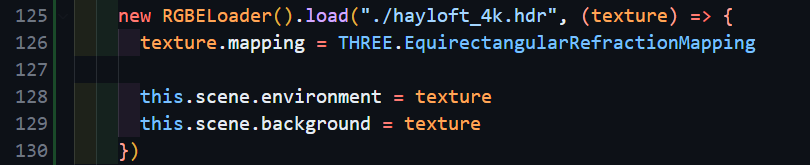
우리는 HDRI 광원을 사용하기 위해 이미지를 로드할 수 있도록

다음의 RGBELoader 애드온을 import 한다.

import 한 RGBELoader를 사용해 hdr파일을 로드한다. 그러면 texture 객체가 만들어지는데,
texture의 mapping속성에 값을 지정해 준다.
이 texture 객체를 사용해 광원뿐만 아니라 배경을 지정해 줄 수도 있다.
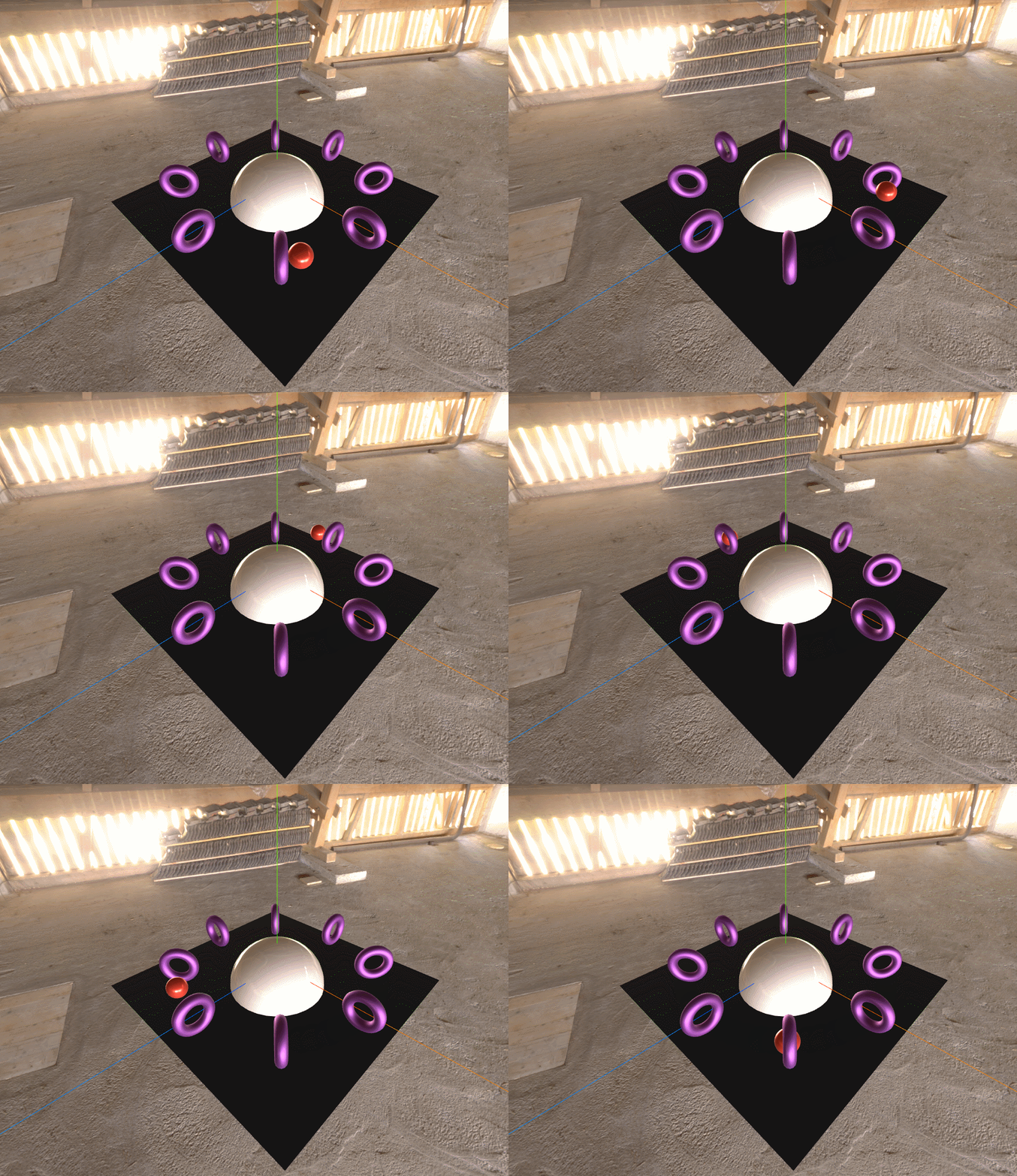
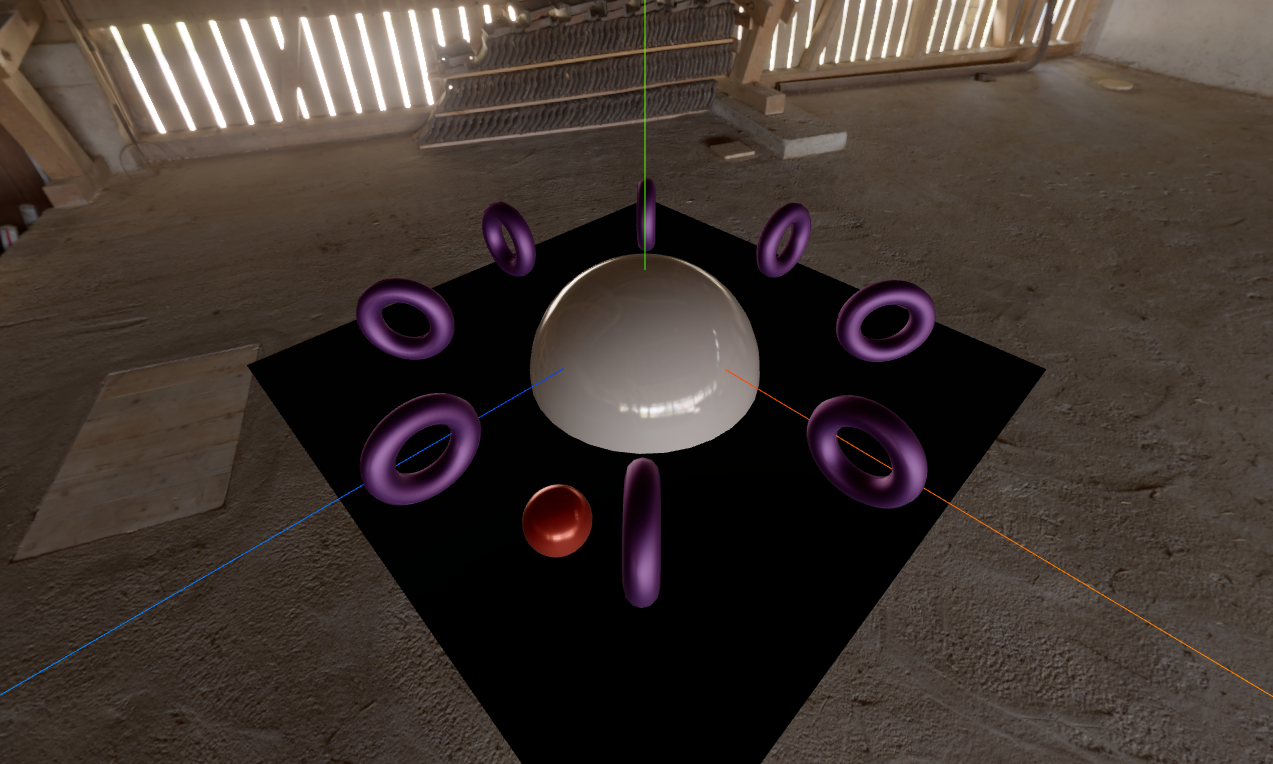
우리가 다운로드한 배경(background)과 광원의 효과가 적용되었다.
만약, 광원의 세기를 조절하고 싶다면

다음과 같이 toneMapping을 지정해 준 뒤 기본값인 1보다 낮게 설정하면 광원의 세기가 약해질 것이다.
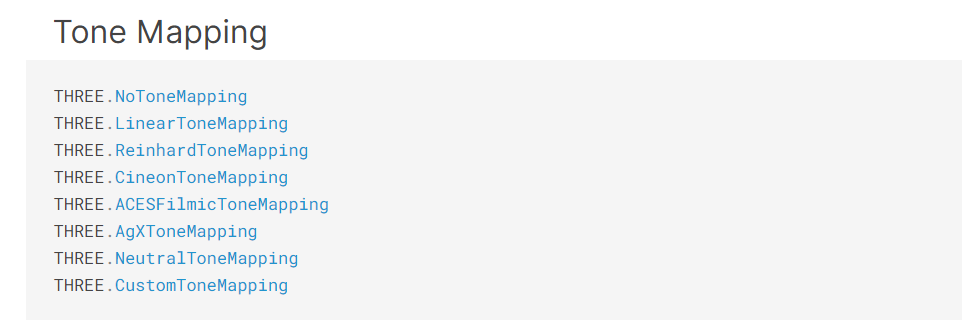
참고로 three.js에서 지정할 수 있는 toneMapping의 값은 다음과 같다.
three.js webgl - tone mapping
threejs.org
toneMapping의 값에 따른 차이를 비교해보고 싶다면 위 샘플 사이트를 추천한다.
어떤 톤을 사용하냐에 따라 색감이 바뀌기 때문에 취향에 맞춰 선택하면 된다.
참고로 가장 많이 사용하는 톤으로는 ACESFilmicToneMapping이다.
지금까지 HDRI를 비롯한 광원에 대해 알아보았다.
다음에는 광원과 밀접한 관계를 갖고 있는 카메라에 대해 알아보자.
'three.js' 카테고리의 다른 글
| [three.js][typescript] - Camera(2) (0) | 2024.07.17 |
|---|---|
| [three.js][typescript] - Camera(1) (1) | 2024.07.16 |
| [three.js][typescript] - Light(2) (1) | 2024.07.16 |
| [three.js][typescript] - Light(1) (0) | 2024.07.15 |
| [three.js][typescript] - Material(7) (0) | 2024.07.12 |


